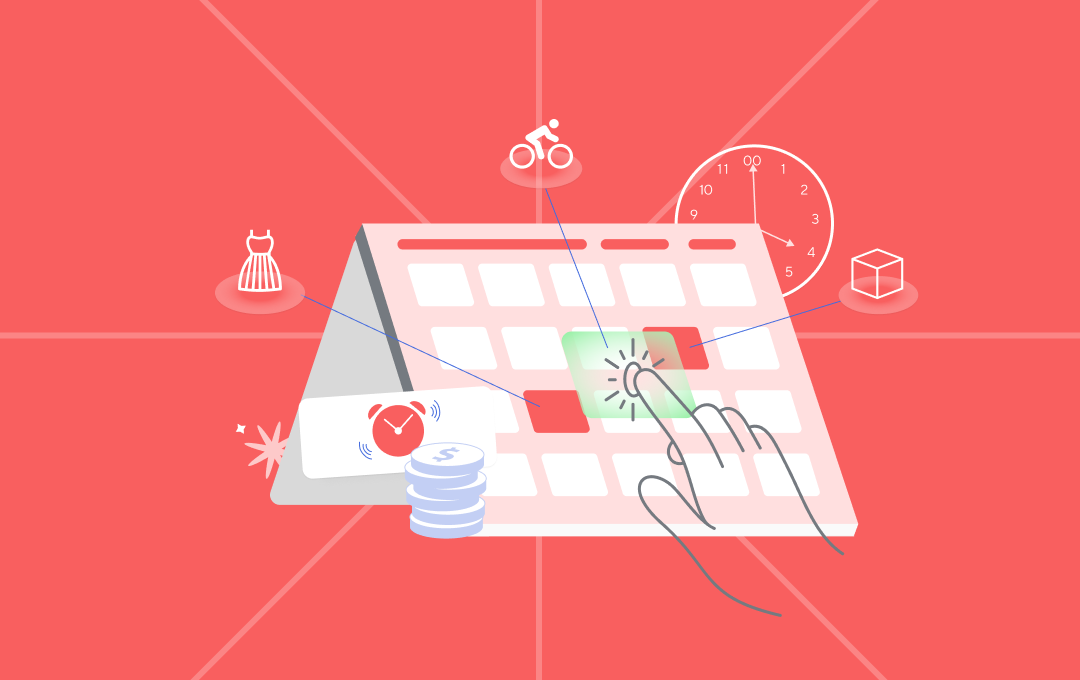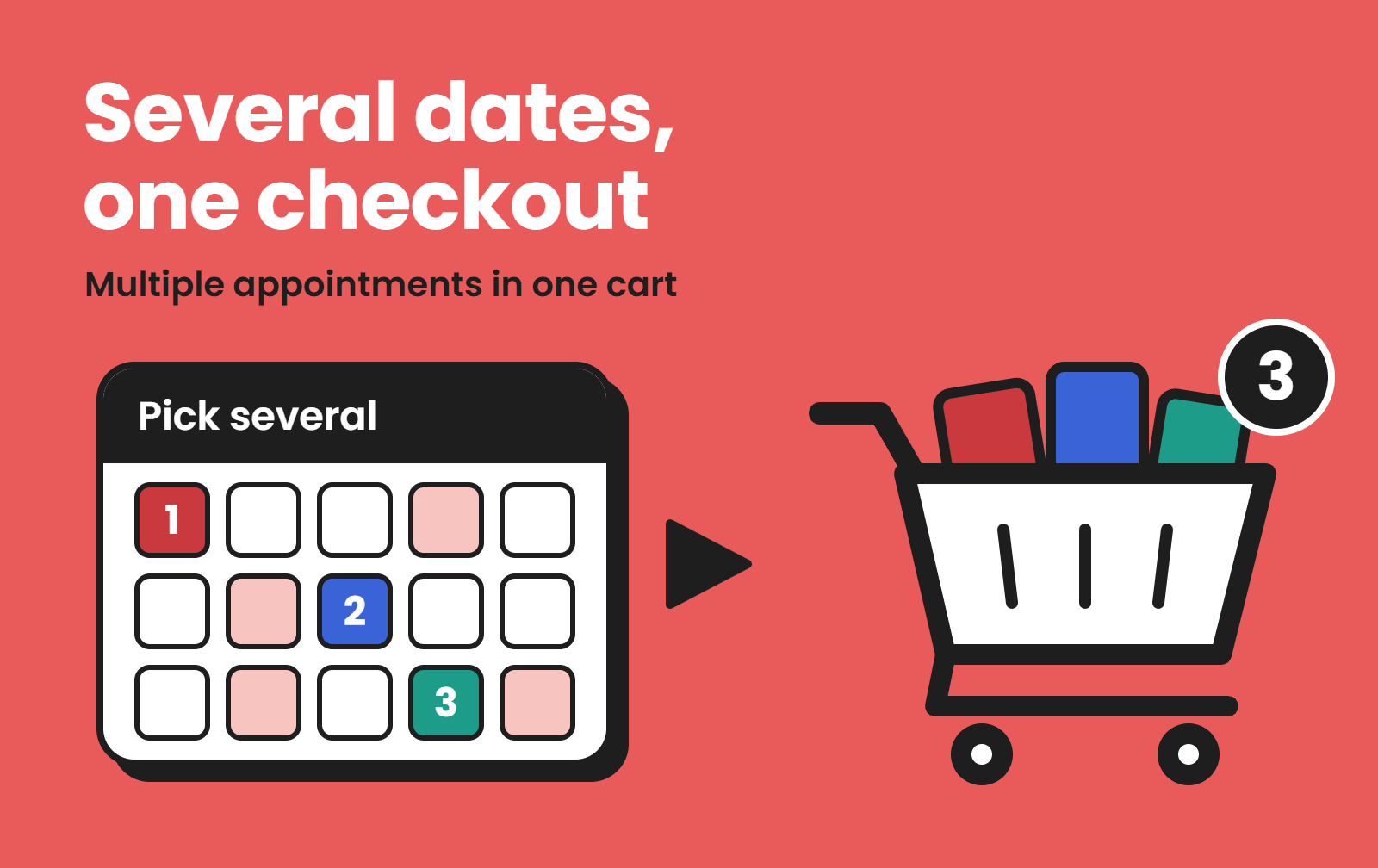

Picture this. A customer wants three sessions with you this month. Without the right setup, they book one, go back to the service page, book another, and go back again.
That is a lot of extra steps.
BookThatApp has a fix. It is called Multiple Appointments. As the Multiple Appointment help article explains, your customer can select several dates and times before adding the service to the cart.
Setup is short: it takes one setting and a number. Let's walk through it.
What are multiple appointments?
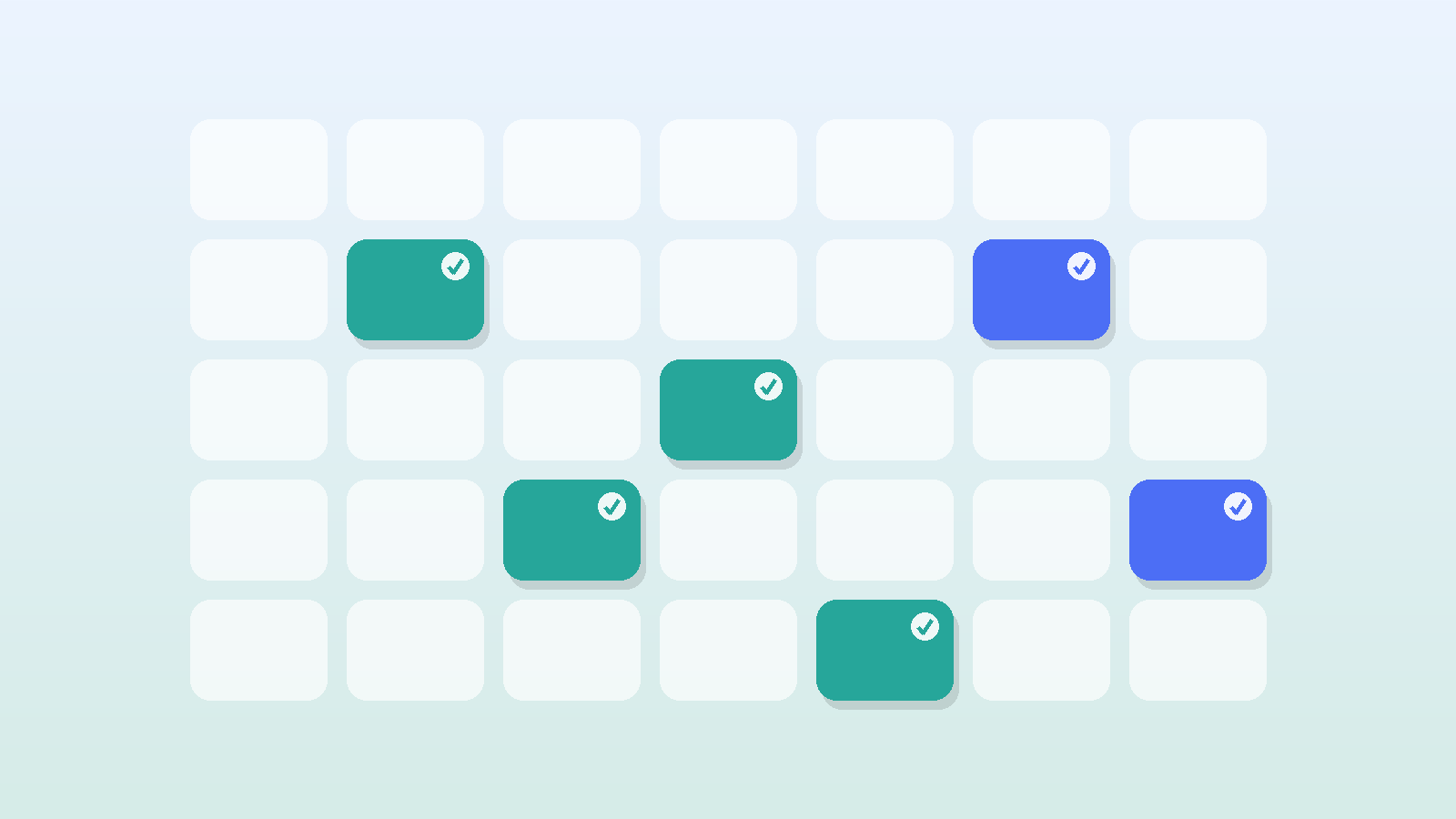
It is exactly what it sounds like. With this feature, your customer can select more than one date and time before they add your service to the cart.
That saves them from going back to the service page every time they want one more slot. One trip through the calendar, and they are done.
One note on plans: the help article says the feature is available on all paid plans.
How to turn it on in 3 steps
- Open the Service Configuration page in the app and find the Duration section.
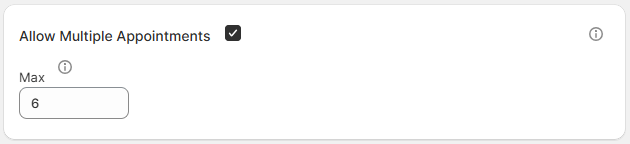
- Right after Duration, look for the Allow Multiple Appointments setting.
- Turn it on. A Max field will appear. Enter the most appointments a customer can schedule at one time.
That is it. Now, when customers use an Appointment widget on your storefront, they can schedule more than one booking at a time.
[INSERT REAL SCREENSHOT: the Service Configuration page in the BookThatApp admin, showing the Duration section, the Allow Multiple Appointments setting turned on, and the Max field. Add a short caption. Use a real screenshot only.]

Where to start
Look at what you just did. You found one section, turned on one setting, and entered one number.
If you have not set up an appointment service yet, the Setup Guide for the Appointment Widget in the BookThatApp Help Desk is the place to start. Then come back and add Multiple Appointments on top.
One setting, many ways to book
Not every customer books the same way. Some want a single slot. Some want a few slots at once. With Multiple Appointments, you can let them do either, and you stay in charge of the limit.
Here are a few ideas of how a merchant might use it:
- A customer who wants a few sessions spread across the month.
- A customer who wants a morning slot and an afternoon slot.
- A customer who is not sure yet and picks a couple of options.
These are examples to spark ideas. The setting itself is simple: your customer picks several dates and times, and you decide the Max.
Frequently asked questions
What does the Multiple Appointments feature do?
It lets your customer select multiple dates and times before adding the service to the cart. They do not need to return to the service page each time they want to book another slot.
Which plans include Multiple Appointments?
The feature is available on all paid plans.
Where do I find the setting?
Go to the Service Configuration page in the app. Find the Duration section. The Allow Multiple Appointments setting comes right after it.
Can I limit how many appointments a customer books at once?
Yes. When you enable Allow Multiple Appointments, a Max field appears. Enter the maximum number of appointments a customer can schedule at one time.
Ready to try it?
Give your customers an easier way to book more than once. Try BookThatApp from its Shopify App Store listing.
Have a question about setup? Our Help Desk is a good place to start.
Sources
- BookThatApp Help Desk: Multiple Appointment Feature article (feature description, plan availability, setup steps, widget month quirk)
- BookThatApp Help Desk: Setup Guide, The Appointment Widget article (setup guide for appointment services)